


The Autocollants
-  -
-
Time

Journal

CDs
.png)
Gallery
.png)
Game
.png)
TV

Nasa

Wikipedia

Hubble

Manual


/cover.png)
/journal and cd.png)
-----------frequently asked question-----------
Why does the timer not work?
↪ It works but it only counts minutes so it may look like it does not work;but trust me, it does!
The timer is pretty simple for a reason and it is great for like the Pomodoro method or just helping you to stay focused.
How do I change the location for the weather widget?
↪ You don't need to because it gets your location automatically.I am sorry for all the people
who use F instead of C,but I am still a beginner and you can google it: C is far more famous then F.
↪ When the time is counting down the button is grey, and when it's finished the color is normal and you can start a new timer.
The preloader does not work/the sound and the animations are not synced/the animation stops at the beginning.
↪ The animation should work properly if that's not the case you may refreshed the page incorrectly.Try closing the site and opening it again.
If that problem appears again and nothing else helps, you unfortunately need to press Ctrl and F5.
/galerie.png)
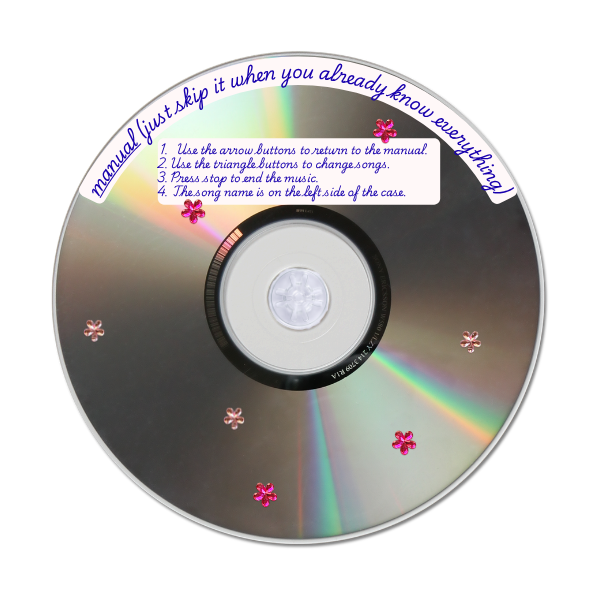
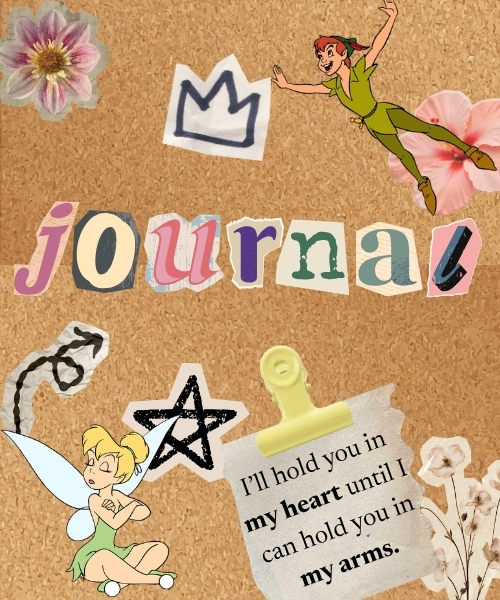
The journal and the CDs app both already have manuals, so this is just a short explanation for a more detailed explanation:read the manual that is build in these apps. In the Journal you can write stuff. Just click new to start and to make a new note. In the CDs app you can listen to music. Just hover over the menu and the CDs come up to the front and you can choose the song you want to listen to. Here I already want to mention that the songs that aren't from pixabay are from the tutorial I used(I did not steal anything from any musician!).
/tvmanual.png)
The gallery app is a super user-friendly app because it is super easy to understand. Just click on the button with the arrow that points to the left to go to the preview picture or click on the arrow that points to the right to go to the next picture.
/gamemanual.png)
The TV app is a simple one again because it works with a yt vd so the userface is pretty famous and you will already know it. But you'll nver know so: Just hit the big red button in the middle and it will start. Hit the little symbol in the right corner ( when I say in the right I mean in the right so the last one of all these symbols.)
/nasa hubble wikipedia.png)
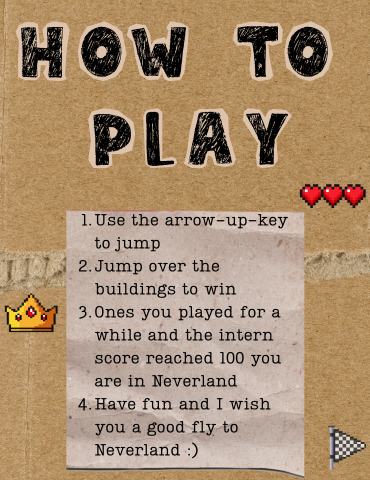
The game has a build in tutorial at the beginning but that only shows for 30 sec and is pretty short. There is not sooo much to explain here but you may are not a fast reader so here we are. Just use the arrow up key on your keyboard to move Wendy up ("jump"). The goal is it to not hit the buildings. When you hit one, the game over screen will show for about 20 sec. and then it will automatically start again so do not relax and be ready at all time. While you play an intern score counts everything (it also shows in the console if you are not sure about the fact that it works but there is a reason why I did not build one ).And that reason is because this game is supposed to let your brain calm down for a second. You don't always need scores and sounds and animation. Sometimes it is good to just focus one 1 thing. Hope you have fun playing and arrive in Neverland.
/ecosia.png)
All these 3 apps are based on a webpage and work the same. They also have a build in manual so please read that for more details. Just double click to open. Hubble is a telescope and the site shows the pictures that the telescope took on the day you typed in. Normally you use your birthday but you can use any day you want. I think evrybody also knows what Wikipedia is. So have fun using it for your research . The NASA site has a lot of cool stuff (for example images,audios,podcasts,books,games) so it is worth a visit. Check it out!
/easter eggs.png)
Ecosia is ,just like Google or Safari, a search engine for the web but the difference to Google and Safari is: it helps the enviroment! Ecosia uses their money ,that they earn with you ,for enviromently projects (100%).They also only track the data that the system needs to run and they use smaller AI's (that is better because these don't need that much energy and the informations that you get are more likely to be actually true). also make their own energy (with the sun for example) and they also show they finances.
/thank you.png)
There are some hidden features on this site but if you want to find them by yourself just skip this part of the manual.
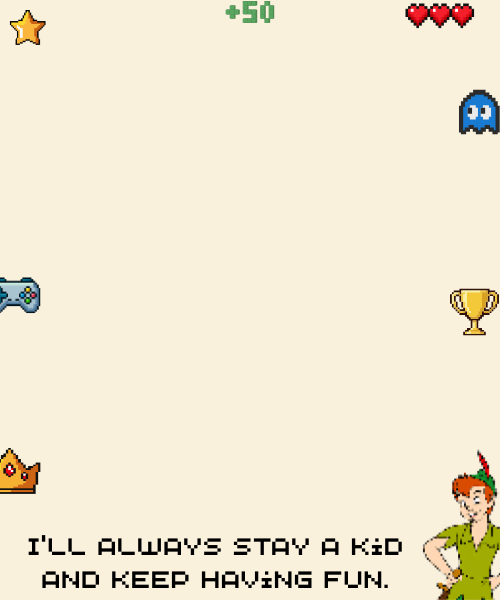
In the top bar is a little image from the sky. You can click on it and a little window will open. That window is a picture from
the sky and yes actually someone once asked themselfes what the author from Peter Pan had in mind when writing "the second star to the right" so
this is not a random picture because every detail here is made with a lot of patience and research.
When you click on the green heart in the map window you'll hear sound: That sound is from the official NASA sound so is a real sound from the universe! It stops automatically when you close the window or when the sound is done.
When you click on the text in the Thank-you-part of this manual,stars will explode from the middle of the site.
Btw we have 3 easter eggs/hidden features because we have 3 kids (Wendy,John,Michael) in the story.
All the sources for the images are in the README here
and the github site with the code files is here.
The README has also every site I used but so I'm save:here are all the links/sources for the audios/images I used.
------------journal app--------------
1.Here is the site,I used these graphics IN the graphics I did by myself
2. Here is the site I also used this IN my own graphics(the map at the start)
3.I used canva to make the graphics
-----------CD's app---------------
1.Here is the site,I used graphics from this site IN my graphics
2.Here is the site I used this site as a base and kept the audios.I also used the images from there IN my own graphics
3.I used this song under the name Background-Music ↴ /Screenshot 2026-08-10 171007.png)
4.I used this song under the name Background-Music #2 ↴ /Screenshot 2026-08-10 183555.png)
5.I used this song under the name chill,sleepy Music ↴ /Screenshot 2026-08-10 184550.png)
6.I used this song under the name study Music ↴ /Screenshot 2026-08-10 191734.png)
7.I used this song under the name motivating,energy music ↴ /Screenshot 2026-08-14 184116.png)
-----------gallery app---------------
1.The img 1 is from here
2.The img 2 is from here
3.The img 3 is from here
4.The img 4 is from here
5.The img 5 is from here
6.The img 6 is from here
7.The img 7 is from here
8.The img 8 is from here
9.The img 9 is from here
10.The img 10 is from here
11.The img 11 is from here
12.The img 12 is from here
13.The img 13 is from here
14.The img 14 is from here
15.The img 15 is from here
16.The img 16 is from here
17.The img 17 is from here
18.The img 18 is from here
19.The img 19 is from here
20.The img 20 is from here
21.The img 21 is from here
-----------game app---------------
1.I used Canva for the graphics.
2. Here is the site I used graphics from this site but please notice that I changed the style of these so they where just the base but I still want to mention them
3.The little wendy picture(the thing that you can move up and down) is from here
4.I also used this site IN my own graphics in the background that shows ones you reach Neverland here it is
-----------tv app---------------
1.I used Canva for the background( the TV)
2.This is the video I used
-----------manual app---------------
1.I used Canva for everything
2. IN my own graphics(the one I made with Canva) I used this but I changed a lot of stuff so this was just the base.
3. IN my own graphics I also used thisagain
-----------whole site---------------
1. Every gif I used (including the close and open buttons)is from here
2. I got the background-image from here
3.In the app icon for the TV app I used the offical film cover from here,I changed a lot and you can't see the whole thing because of the frame.
4.I used the offical wikipedia logo for the app icon from here
5.I used this image in the background of the NASA app icon.This image is from NASA,
6.In general:all images except the one sky image in the map window are from NASA (I mean all the image sthat show teh universe,the moon etc.).
-----------map window---------------
1.I got the base img from here
2.I added graphics from this site to the image
3.I used the sound from NASAS sounds from beyond programm and here is the direct link
-----------welcome window---------------
1.The font and the frames are in my README
2.The 2 images at the top are from this site
-----------ecosia search bar---------------
1. I got the logo from here
-----------the pre-loader---------------
1.I made it with CANVA
2.I used this for the tinkerbell but for the flying tinkerbell at the start I used teh AI tool from Canva Here is the site
3.I used the offical hackclub logo from this site
Oh it looks like you found the manual :).Here, everything is explained in detail but if you
found a bug or need help because I forgot to explain something: My stardance profile is in the top bar. So I hope you find the answers to your
question here and like my site.Have fun and have you found my little easter egg (map to Neverland) already?
-----------⭐-----------
I want to use the chanche here and say thank you to some people because that project took really long and I often struggled or
made mistakes and alot of people stayed through the whole progress and motivated me or helped me.
First of all a really big thank you to @nokira,helped me with the whole dragging and opening JS and was here since minute 1!
Thank you @matthewwong12 for always writing the kindest comments.
Thank you to @OrangeJuice for motivating me an helping me choose the right design and settung up the whole project in VS code-app.
A really big thanks to @water for all the comments you wrote.
Thank you to @madzia, @Ann_with_an_e, @Makkonen, @Yoruu
Hey there  ! Unfortunatly the site Wikipedia is not allowed to be in an iframe
:(.
! Unfortunatly the site Wikipedia is not allowed to be in an iframe
:(.
That is why the site should open in an extra tab.
If you already closed it or whatever  then you have 2 options:
1.Click on the open icon (the green heart) to open it again
2.Click on the app icon (the white,round,puzzle-thing with letters on it) and select it and after that click again to open the site.
Thanks for understanding that and now have fun on your journey through Neverland  <3.
<3.
Hey there ! Unfortunatly the sites from NASA are not allowed to be in an iframe
:(.
That is why the site should open in an extra tab.
If you already closed it or whatever then you have 2 options:
1.Click on the open icon (the green heart) to open it again
2.Click on the app icon (the little cat sticker) and select it and after that click again to open the site.
Thanks for understanding that and now have fun on your journey through Neverland <3.
Hey there ! Unfortunatly the sites from NASA are not allowed to be in an iframe
:(.
That is why the site should open in an extra tab.
If you already closed it or whatever then you have 2 options:
1.Click on the open icon (the green heart) to open it again
2.Click on the app icon (the moon picture with the web symbol on it) and select it and after that click again to open the site.
Thanks for understanding that and now have fun on your journey through Neverland <3.
/2.png)
/3.png)
/4.png)
/5.png)
/6.png)
/7.png)
/8.png)
/9.png)
/10.png)
/11.png)
/12.png)
/13.png)
/14.png)
/15.png)
/16.png)
/17.png)
/18.png)
/19.png)
/20.png)
/21.png)
/mapimg.jpg)


/energy music (1).png)
The Autocollants

/Website OS (1).jpg)

/drawingOS.jpg)
/textimg.png)
 Welcome to Neverland OS.
/screen1.JPG)
/screen2.jpg)
/screen3.jpg)
/screen4.jpg)
/screen5.jpg)
I did most of the graphics myself and gave my best.
If you like my site and want to build something similar than do so!
 Every information you could use is in my README.
You can always use that of course but please mention where your base is from because I really gave my best here.
Thank you for having interest in my OS and stopping by on this site.
Every information you could use is in my README.
You can always use that of course but please mention where your base is from because I really gave my best here.
Thank you for having interest in my OS and stopping by on this site.
 Always happy to hear feedback. To move a window,click and hold on the yellow heart.To close click on the red one and to bring it back to it's original
position on the green heart.
Always happy to hear feedback. To move a window,click and hold on the yellow heart.To close click on the red one and to bring it back to it's original
position on the green heart.

 What exactly can you do here/what features does this OS have?
1.Write notes,study stuff,whatever you wan tin the JOURNAL and it saves everything in your browser.(Please notice that when you press the keys mentioned in the manual these will be deleted but if you refresh,nothing happens!)
2.Listen to music,lock in with the background study track or listen to music while doing whatever you want in the CDs app.
3.Look at some images in the GALLERY app.
4.Fly to Neverland and give your brain a break in the GAME app.
5.Watch the (new) Peter Pan series in the TV app.
6.Explore space in the NASA app.
7.Educate yourself with the WIKIPEDIA app.
8.Look at the universe in the HUBBLE app.
9.Search the web with the searchbar on your homescreen (ECOSIA).
10.Keep track of your tasks with the timer in the top bar.
You need help or want to use the full potential of this OS?
Check out the manual app for more infos.
